USB Hub Panel
Overview
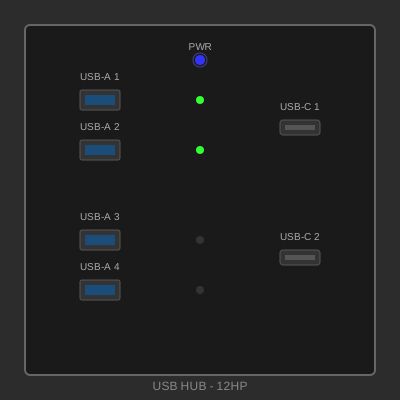
A front-panel USB hub providing convenient access to USB connectivity in your Makerpanel setup. Features four USB-A 3.0 ports and two USB-C ports with integrated power management and status indicators. Perfect for connecting peripherals, development boards, or charging devices.
Specifications
- Size: 12 HP × 3U (60.96 mm × 128.5 mm)
- Depth: 55 mm (including PCB and connectors)
- Material: FR4 PCB with aluminum faceplate
- Finish: Black anodized aluminum, black PCB
- Power Requirements: 12V DC input, 5V/3A output via onboard regulator
- Data Interface: USB 3.0 (backward compatible with USB 2.0)
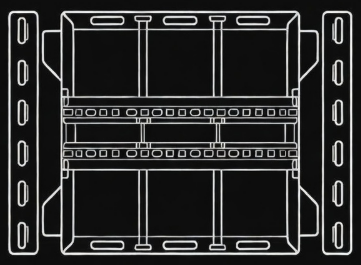
- Mounting: T-slot compatible with 4 mounting points (M5/M6 twist nuts)
Features
- Four USB-A 3.0 ports (5 Gbps data transfer)
- Two USB-C ports with USB PD support (USB 2.0 data)
- Individual overcurrent protection per port
- Status LED for each port (green = active, red = fault)
- Main power indicator LED
- Upstream USB-C connection to host
- ESD protection on all data lines
- Resettable fuses for safety
- Hot-plug capable
Design Files
Design files will be available soon. This is an example panel for demonstration.
Example file structure: - PCB Gerber Files (ZIP) - Schematic (PDF/KiCad) - 3D Model (STEP) - Faceplate Design (DXF) - BOM with part numbers (CSV)
Bill of Materials
| Qty | Part | Description | Approx. Cost |
|---|---|---|---|
| 1 | PCB | FR4 1.6mm, 12HP×3U, 4-layer | $15.00 |
| 1 | Faceplate | Aluminum 2mm, laser cut | $18.00 |
| 4 | USB-A Connector | USB 3.0 Type A receptacle | $8.00 |
| 2 | USB-C Connector | USB Type C receptacle | $6.00 |
| 1 | USB Hub IC | USB 3.0 hub controller (e.g., GL3523) | $5.00 |
| 1 | DC-DC Converter | 12V to 5V, 3A | $4.00 |
| 6 | Resettable Fuse | 500mA, SMD | $3.00 |
| 7 | LED | 0805 SMD, bi-color (red/green) | $2.00 |
| 1 | Upstream Cable | USB-C to internal header | $3.00 |
| 4 | M3 Screw | 10mm length, countersunk | $1.00 |
| 4 | T-slot T-nut | M5/M6 compatible with rail system | $2.00 |
| - | Passives | Resistors, capacitors, etc. | $5.00 |
Total Estimated Cost: ~$72.00
Power Specifications
Input: 12V DC, 0.5A (6W maximum)
Output: 5V DC, 3A total (distributed across ports)
Per Port Limit: 500mA (USB 3.0 standard)
Protection: - Overcurrent protection per port - Reverse polarity protection on input - ESD protection on all USB data lines - Thermal shutdown on voltage regulator
Technical Details
USB Hub Controller
- Supports USB 3.0 SuperSpeed (5 Gbps)
- Backward compatible with USB 2.0/1.1
- 4 downstream USB 3.0 ports
- Built-in transaction translator
- Link power management (LPM) support
USB-C Ports
- USB 2.0 data only (480 Mbps)
- CC resistor configuration for proper orientation
- Can provide charging up to 500mA per port
- USB PD negotiation for compatible devices
LED Indicators
Each port has a dual-color LED: - Green: Port active, normal operation - Red: Overcurrent fault detected - Off: No device connected
Main panel LED: - Blue: Panel powered and operational - Off: No power to panel
Assembly Instructions
- PCB Assembly
- This panel requires SMD assembly (recommend professional PCBA service)
- Or use reflow oven/hot plate for DIY assembly
- Double-check USB connector orientations
-
Test continuity before applying power
-
Initial Testing
- Connect 12V power only (no upstream USB)
- Verify 5V rail with multimeter
- Check main power LED illuminates
-
Verify no excessive heat from regulator
-
USB Testing
- Connect upstream USB-C to host computer
- Verify hub enumeration in device manager
- Test each port with a USB device
-
Verify LEDs indicate correct status
-
Faceplate Installation
- Align faceplate over USB connectors
- Ensure proper fit before securing
-
Secure with M3 screws from back
-
Panel Mounting
- Install T-slot twist nuts (M5/M6)
- Position on rail, ensuring clearance for cables
- Tighten mounting screws
- Connect power and upstream USB
Wiring
Power Input (2-pin connector): - Pin 1: +12V - Pin 2: Ground
Upstream USB (internal USB-C cable): - Connect to host system's USB port - Or use internal header if available
Applications
- Development Station: Easy access for programming dev boards
- 3D Printer Panel: Connect camera, WiFi adapter, USB drive
- Audio Workstation: Connect MIDI controllers, audio interfaces
- Home Automation: Connect Zigbee/Z-Wave controllers
- General Maker Station: Convenient port access for any USB device
Usage Notes
- Maximum 3A total current across all ports
- Individual ports limited to 500mA (USB 3.0 spec)
- For higher power devices, use dedicated power supply
- USB-C ports can charge phones/tablets at standard rates
- Overcurrent protection auto-recovers when fault cleared
Firmware
The USB hub controller operates with factory firmware. No user programming required.
Troubleshooting
Hub not detected: - Check upstream USB connection - Verify 12V power supply is connected - Check main power LED
Port not working: - Check port LED status - Red LED indicates overcurrent - disconnect device - Try different USB device to verify
Slow transfer speeds: - Verify USB 3.0 cable used for upstream connection - Some devices may negotiate USB 2.0 speed - Check host system supports USB 3.0
Variations
- Higher Power: Use larger DC-DC converter for 5A output
- More Ports: Cascade hub ICs for 8+ ports
- All USB-C: Replace USB-A with all USB-C ports
- Isolated Ports: Add USB isolators for sensitive applications
- Ethernet: Add USB-to-Ethernet adapter on internal port
License
This design is released under the MIT License.
Permission is hereby granted, free of charge, to use, copy, modify, and distribute this design for any purpose.
Author
Ranch Hand Robotics
GitHub: @Ranch-Hand-Robotics
Date: January 2026